Microsoft‑managed Conditional Access policies are pre‑built security policies that Microsoft automatically adds to tenants to help organisations strengthen identity protection with minimal administrative work.
These policies are informed by Microsoft’s global threat intelligence, which analyses more than 65 trillion signals every day. Many focus on enforcing multifactor authentication (MFA), which reduces account compromise risk by more than 99%.
Where to find them:
Microsoft Entra admin center → Entra ID → Conditional Access → Policies
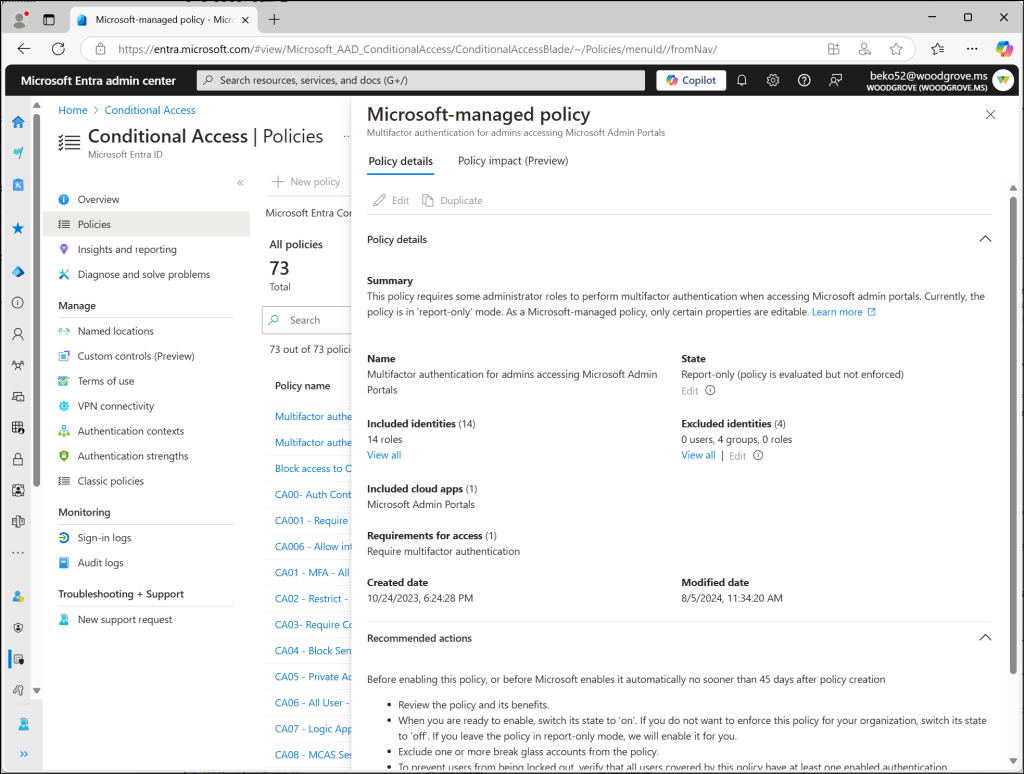
Administrators with the Conditional Access Administrator role (or higher) can view and manage them.
1. How These Policies Work
Microsoft automatically creates these policies in your tenant. Administrators can:
- Turn policies On, Off, or set to Report‑only
- Exclude specific accounts (for example, break‑glass accounts)
Additional behaviour:
- If a policy remains in Report‑only for more than 45 days, Microsoft may automatically enable it.
- Microsoft provides 28 days’ notice before enabling a policy, via email and Message Center.
Important restrictions:
- You cannot delete or rename Microsoft‑managed policies.
- If you require customisation, you can duplicate a policy and edit the copy.
2. Automatic Updates to Policies
Microsoft may update these policies as security threats evolve. When updates occur:
- The policy settings themselves do not change.
- Admin‑defined exclusions remain in place to prevent accidental lockouts.
- Microsoft may add new users, groups, or workloads that fit the policy criteria.
- Notification is provided through regular communication channels.
This ensures security remains current without requiring manual changes from administrators.
3. Overview of Microsoft‑Managed Policies
Block All High‑Risk Agents (Preview)
Blocks access for identities classified as high risk by Microsoft Entra ID Protection.
Block Legacy Authentication
Blocks sign‑ins using outdated protocols such as IMAP, POP, SMTP, and older Office clients.
Legacy authentication:
- Does not support MFA
- Is used in the majority of password spray attacks
Block Device Code Flow
Blocks authentication flows that begin on one device and complete on another (common on TVs, IoT devices, or meeting room hardware).
This method is rarely required legitimately and is frequently exploited by attackers.
MFA for Admins Accessing Microsoft Admin Portals
Requires MFA for 14 privileged roles when accessing Microsoft admin portals.
MFA for All Users
Requires multifactor authentication for all users in the organisation.
Session management minimises repeated MFA prompts.
MFA for Per‑User MFA Users
Targets tenants that still rely on legacy per‑user MFA.
Supports migration to Conditional Access‑based MFA.
Note: If more than 500 users have per‑user MFA assigned, duplicate and expand the policy.
MFA + Reauthentication for Risky Sign‑Ins
Requires MFA when a sign‑in is identified as high risk (for example, unusual travel or token replay).
Scope rules:
- If all users are MFA‑enabled and licensed → applies to all users
- If not → Microsoft scopes the policy to a special group limited by available Entra ID P2 licenses
Risky users cannot register MFA to prevent attackers enrolling their own device.
Security Defaults Replacement Policies
Used when tenants transition away from Security Defaults.
Includes:
- Block legacy authentication
- Require MFA for Azure management
- Require MFA for admins
- Require MFA for all users
4. How to Monitor the Impact of These Policies
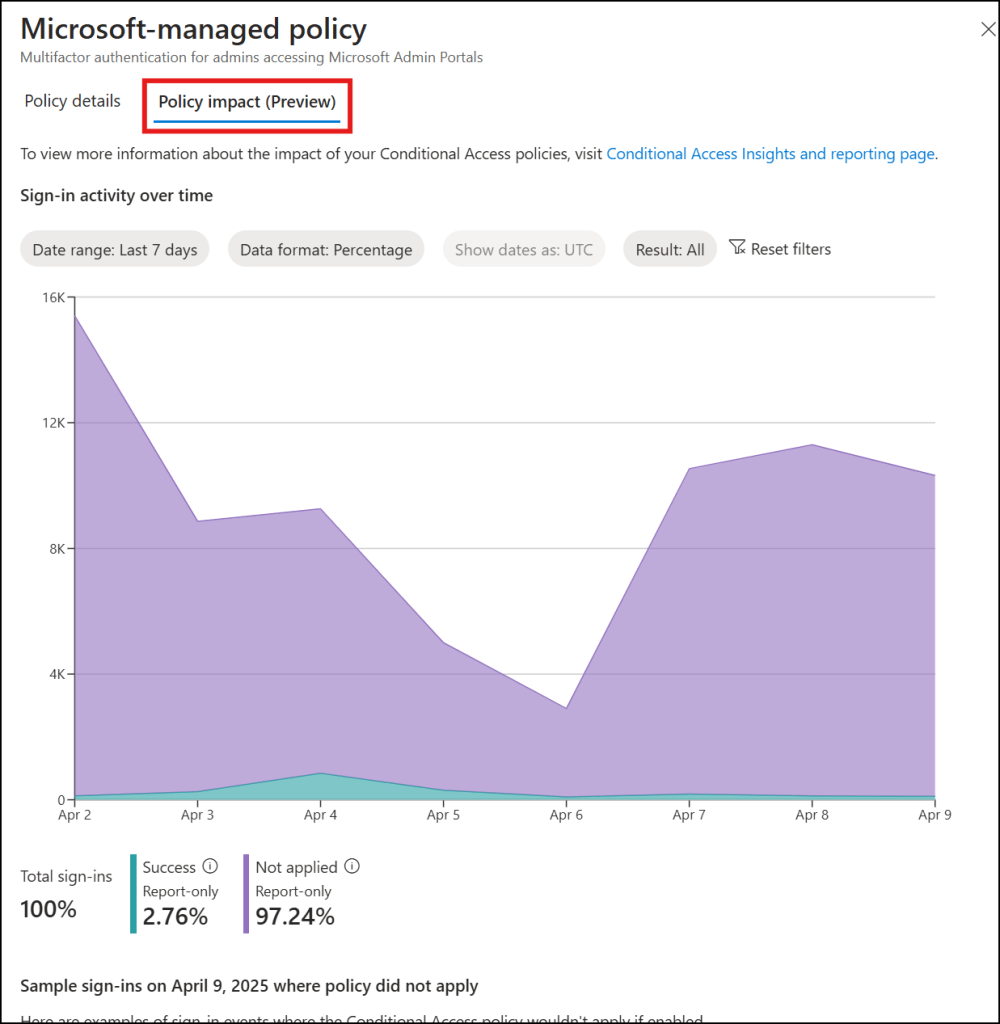
Method 1: Policy Impact Tab
Displays:
- Number of affected sign‑ins
- Number of affected users
Method 2: Microsoft Entra Sign‑In Logs
Steps to view logs:
- Sign in to the Microsoft Entra admin center (Reports Reader role or above).
- Navigate to: Entra ID → Monitoring & health → Sign‑in logs
- Apply filters such as:
- Correlation ID
- Conditional Access status
- Username
- Time range
- Select any sign‑in event.
- Open the Conditional Access tab to review:
- Why the policy triggered
- Device used
- Client application
- Conditions that applied
5. Common Questions
What is Conditional Access?
A system where access decisions follow an “if–then” rule:
- If a user meets certain conditions
- Then apply controls (such as MFA)
Can I customise these policies?
Yes. Duplicate the policy and customise the copy.
Which admin roles are included in admin MFA policies?
Examples include: Global Administrator, Security Administrator, User Administrator, Exchange Administrator, Conditional Access Administrator, and other high‑privilege roles.
Do external MFA providers satisfy the MFA requirement?
Yes, depending on configuration.
What about certificate‑based authentication (CBA)?
- Single‑factor CBA → requires an additional factor
- Multi‑factor CBA → satisfies MFA requirements
Do custom controls satisfy Microsoft‑managed MFA requirements?
No. Organisations should migrate to using External Authentication Methods.
How do I track when Microsoft adds or changes policies?
Audit logs can be queried by accounts with AuditLog.Read.All and Directory.Read, filtering for records generated by: Microsoft Managed Policy Manager
(See Microsoft Learn for example Graph API queries.)